GHL CRM Integration
The GHL CRM integration connects CallVibe with your GoHighLevel account. It automatically creates new leads as contacts, pushes call summaries into GHL contact notes (including summary, call direction, agent name, and recording URL), and logs action items as tasks in the Tasks section.
Required Credentials
- Location ID
- Private Integration Token (PIT)
Steps to Get Credentials
Private Integration Token (PIT)
- Log in to GoHighLevel at https://www.gohighlevel.com/ as an admin.
- From the left-hand menu, navigate to: Settings → Private Integrations
- Click Create New Integration.
- Give the integration a name and set permissions to Read and Edit Contacts.
- Click Create.
- Your Private Integration Token will appear on the screen — copy it immediately.
Location ID
- In the left-hand menu, navigate to: Settings → Business Profile
- Your Location ID is displayed next to the General Information heading — click the copy icon to copy it.
Setup
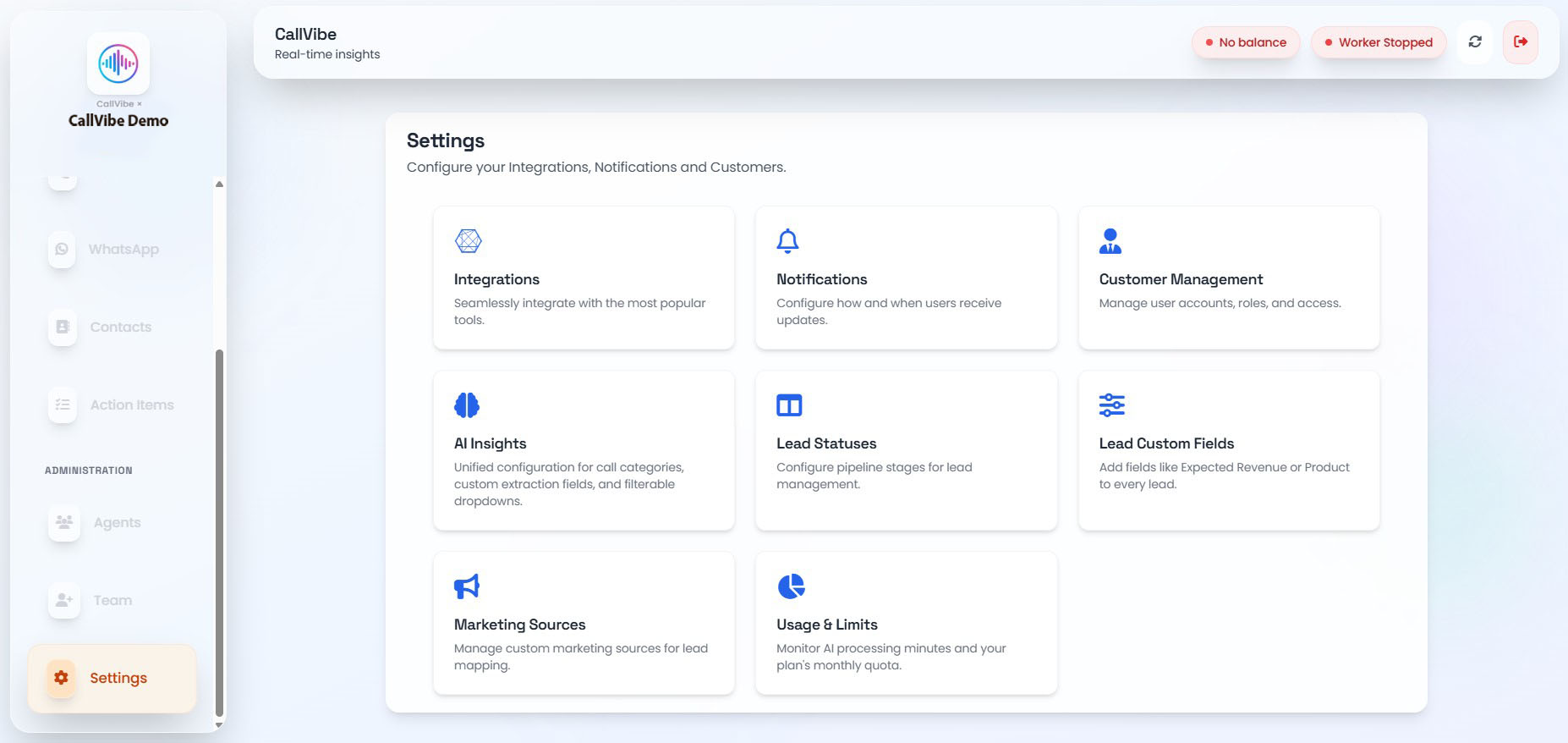
- Open Settings > Integrations.
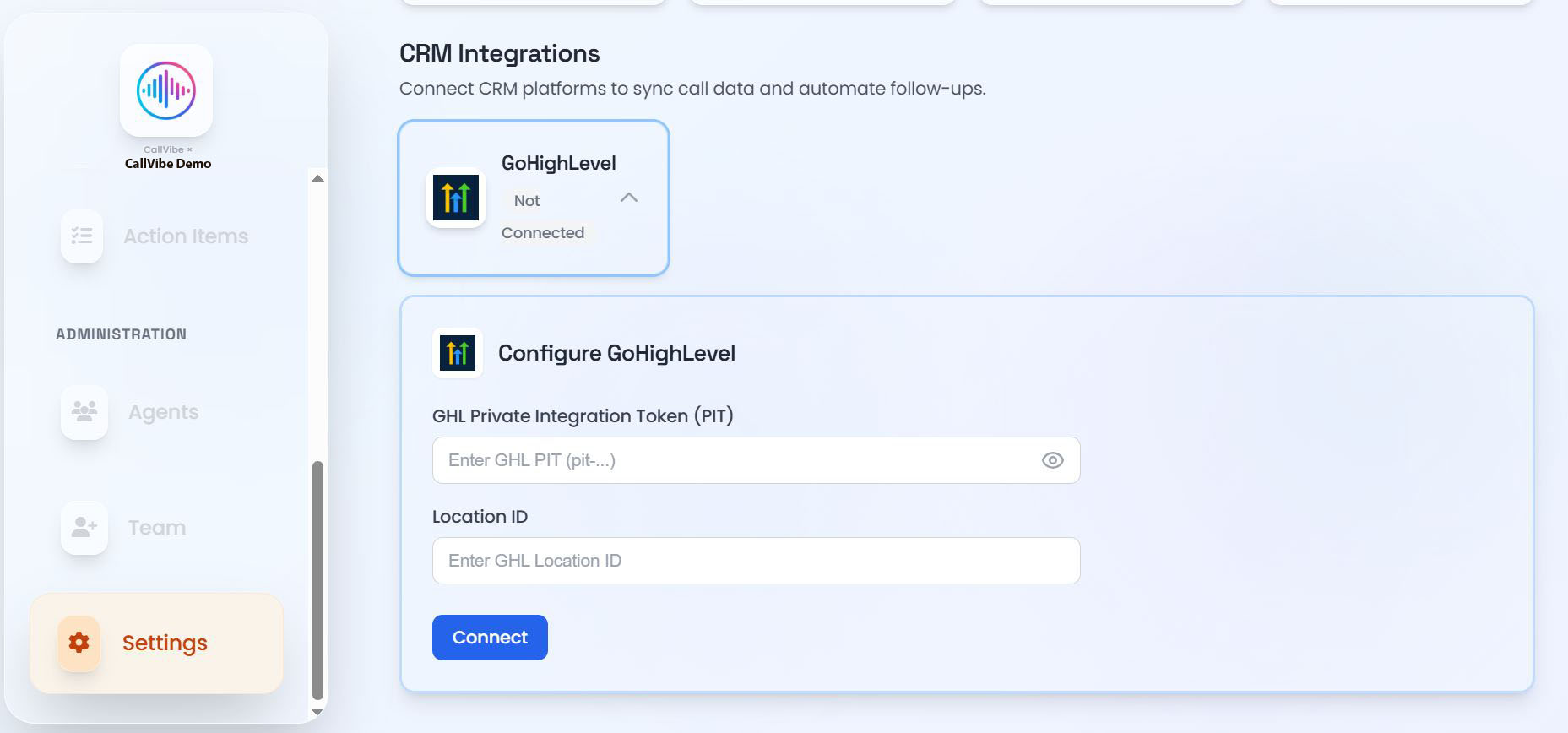
- Select GHL CRM.
- Enter your Location ID and Private Integration Token.
- Click Connect.
- Start worker.
Validation
tip
- Card status shows Connected.
- Worker remains running.
- Call ingestion is visible in Calls.