Outlook
Outlook is an AI summary of how your day, week, or month went across every call. Open it from Outlook in the sidebar.
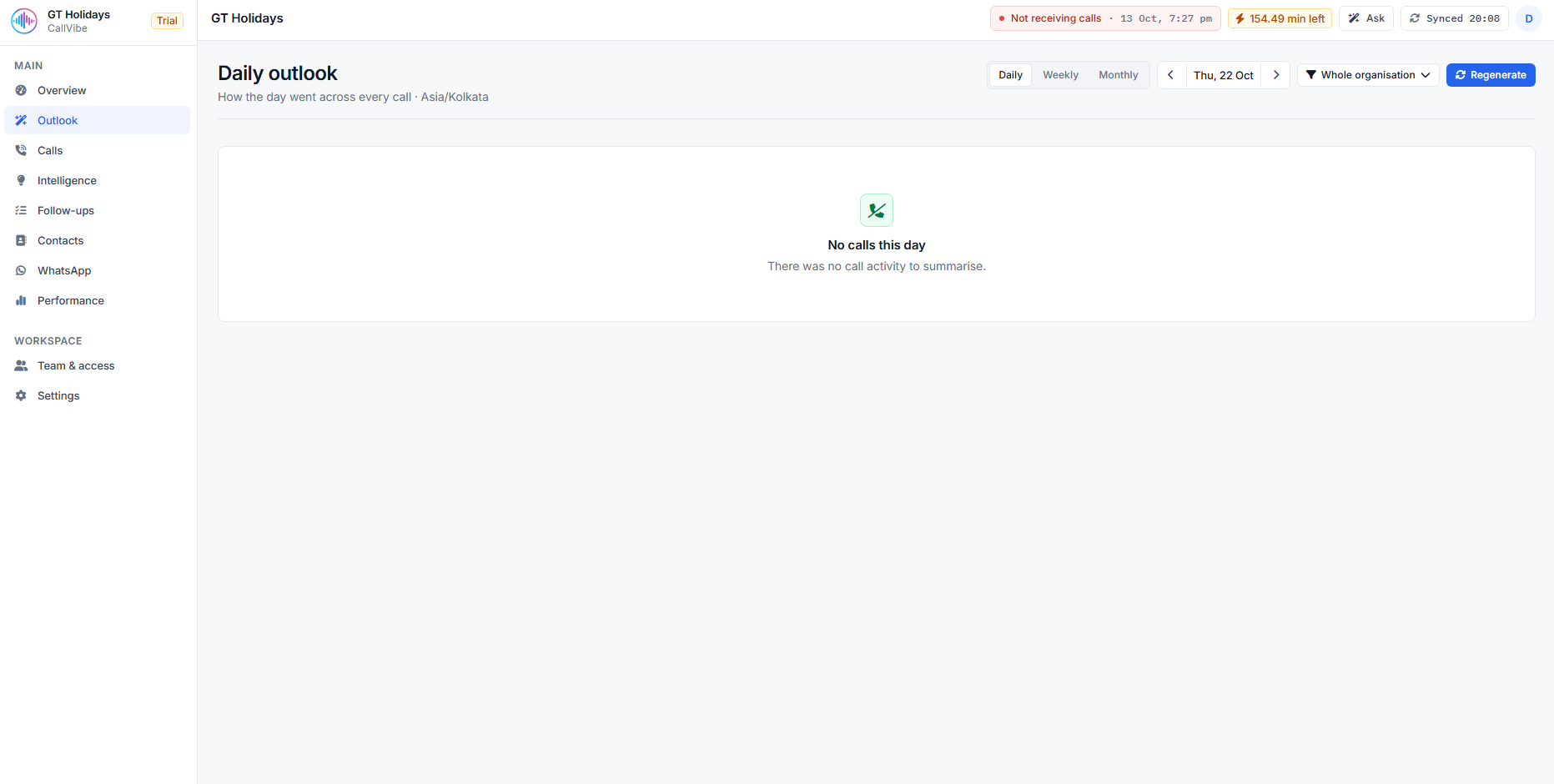
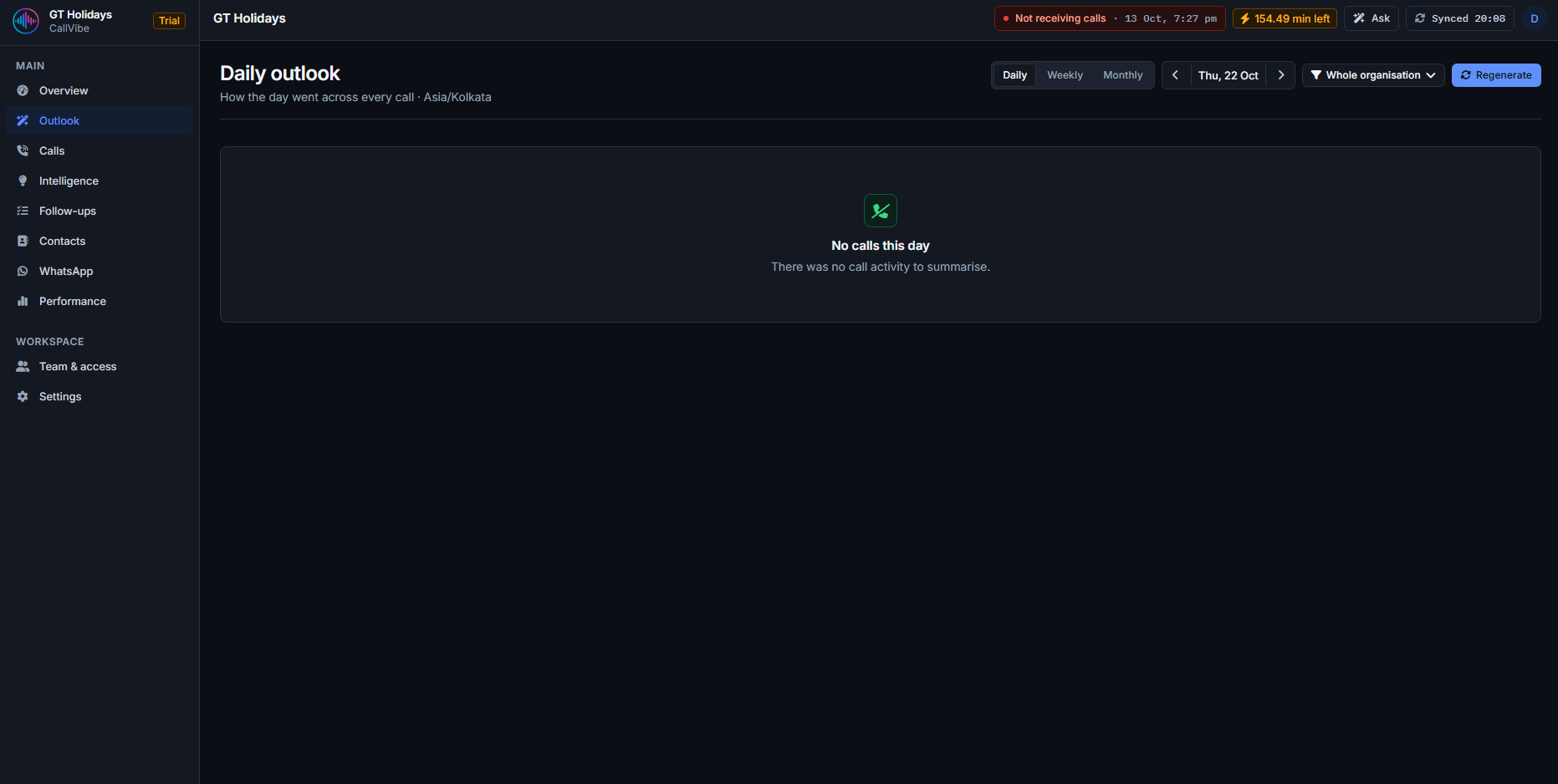
Choose What to View
Use the controls at the top of the page:
- Daily, Weekly, or Monthly: The period to summarize. A week runs Monday to Sunday. A month is the calendar month.
- Arrows and date: Move to the previous or next period, or pick a date.
- Scope: Choose Whole organisation, a team, or an agent.
- Regenerate: Rebuild the summary from the latest data.
Dates use your business timezone, set in Settings > Preferences.
note
Agents see only their own summary. Owners can see the whole organisation, teams, and agents.
If there were no calls in the period, the page says "No calls this day".
What You See
Outlook reads from top to bottom. The first screen tells you how the period went and what to chase.
- Headline: A short verdict for the period, with key figures such as Calls, Negative, and Follow-ups. Weekly and monthly views also compare with the previous period.
- Rhythm (weekly and monthly): Day by day activity, and patterns the AI found across the period. Click a day to open that day's summary.
- Customers: What customers wanted, and who is still waiting on you.
- Execution: What's working, and what needs attention. Weekly and monthly views show problems that kept coming up. Agent notes are included.
- Next steps: Who picks things up.
- Where exactly: More detail. Open Teams, Agents, Open issues, Flagged calls, Call topics, All metrics, or History.
Generate a Summary
Summaries are written by the AI. If one isn't ready yet, owners can click Generate (or Summarise so far for a period still in progress). A summary for a period that's still running covers it up to now.
You can also get Outlook summaries by email. See Notifications.
Tips
- Start each day with the Daily view for yesterday.
- Use Weekly to spot problems that keep coming back.
- Click into Agents or Teams under Where exactly to see who needs help.