Notifications
Notifications is where CallVibe tells you something happened: a Slack channel, or a digest email. Open it from Settings > Notifications.
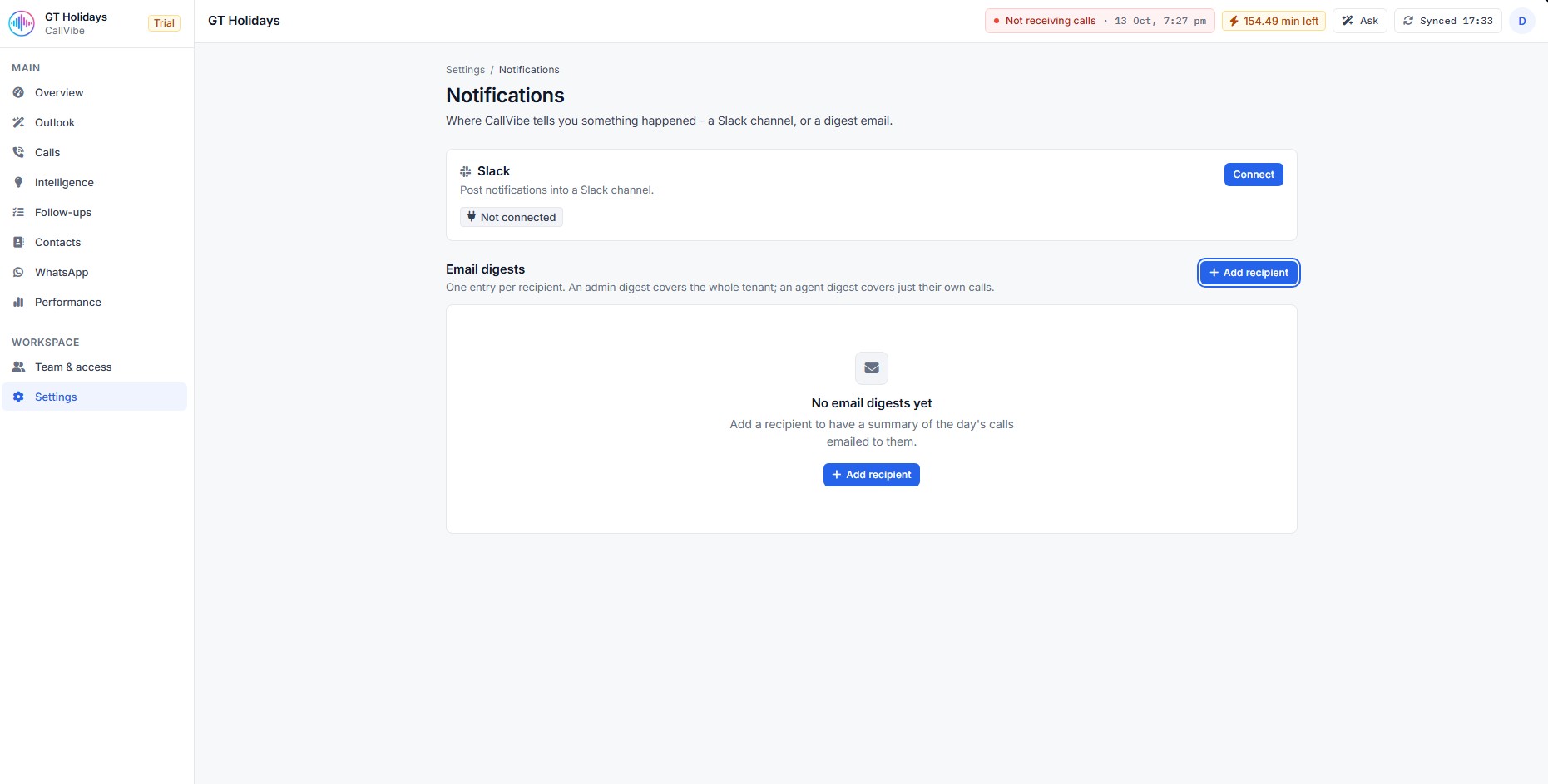
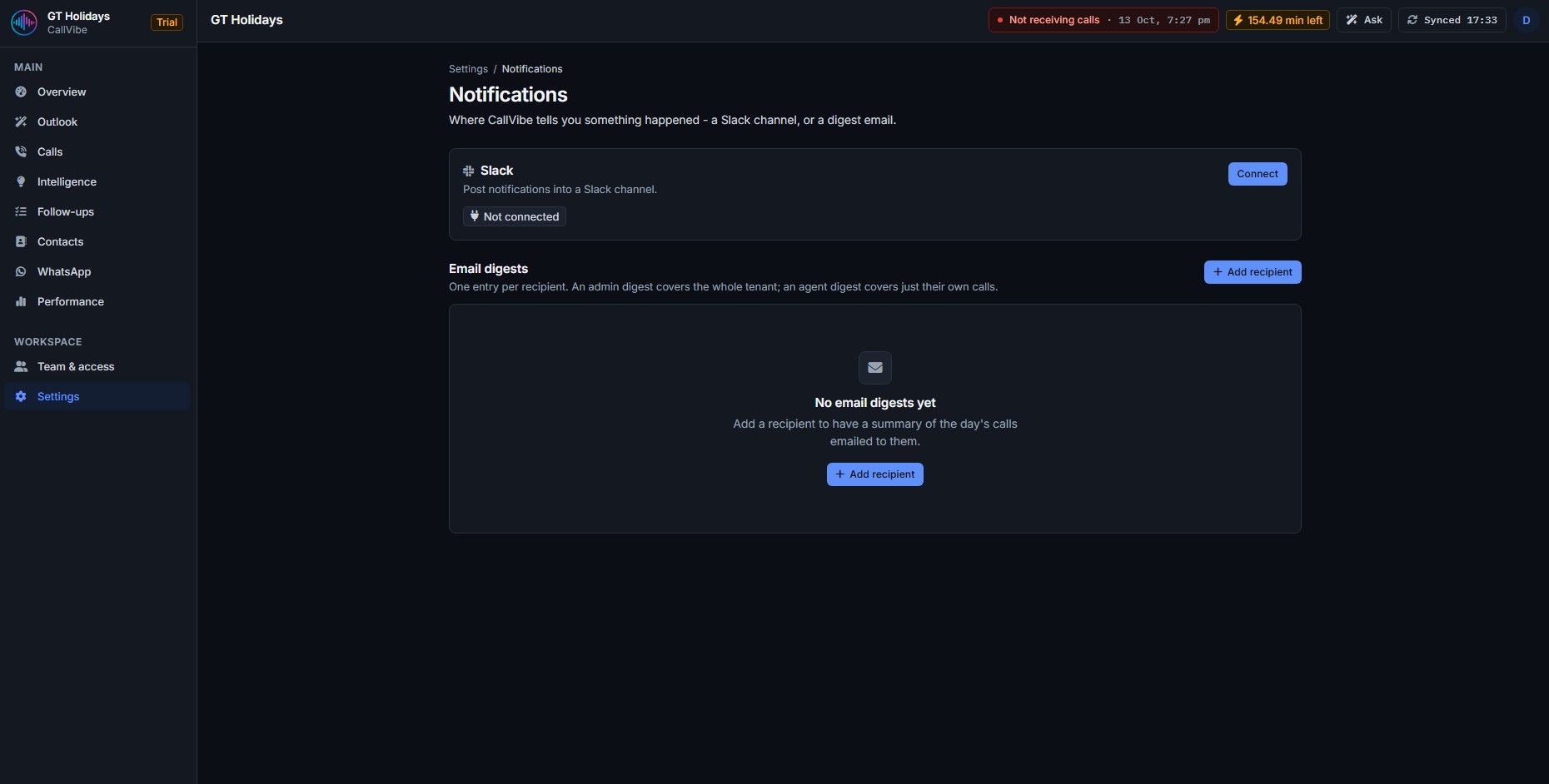
Slack
- Click Connect and approve CallVibe in Slack. Choose the channel to post to.
- Turn on Missed call alerts to post to Slack the moment an inbound call goes unanswered.
- Click Disconnect to remove the connection, for example when you switch workspaces.
Email Digests
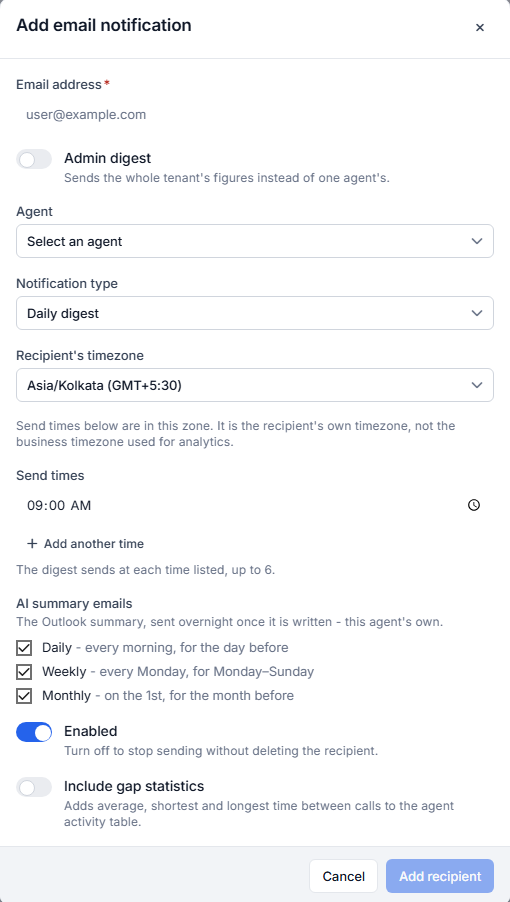
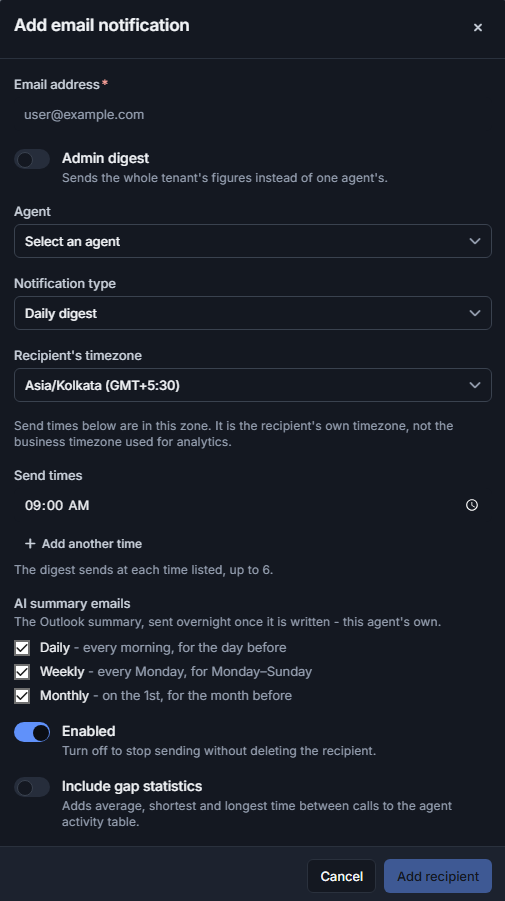
Add one entry for each person who should get emails. Click Add recipient and fill in:
- Email address: Who receives the email.
- Admin digest: Turn on to send figures for the whole tenant. Turn off to send one agent's figures.
- Agent: Which agent the digest covers. Shown when Admin digest is off.
- Notification type: Daily digest or Weekly summary.
- Recipient's timezone: The timezone for the send times. It's the recipient's own, not your business timezone.
- Send times: When the digest goes out. Add up to 6 times for a daily digest. A weekly summary sends once, on Monday.
- AI summary emails: Choose Daily, Weekly, and Monthly summaries. They go out overnight, once the summary is written.
- Enabled: Turn off to stop sending without deleting the recipient.
- Include gap statistics: Adds average, shortest, and longest time between calls to the agent activity table.
Each recipient is listed with its settings. You can pause or resume it, edit it, or delete it. To pause instead of removing someone, use the Enabled toggle.
Operational Tips
- Use admin digests for leadership summaries.
- Use agent digests for team coaching.
- Set the timezone and send times explicitly for predictable delivery.