Lead Custom Fields
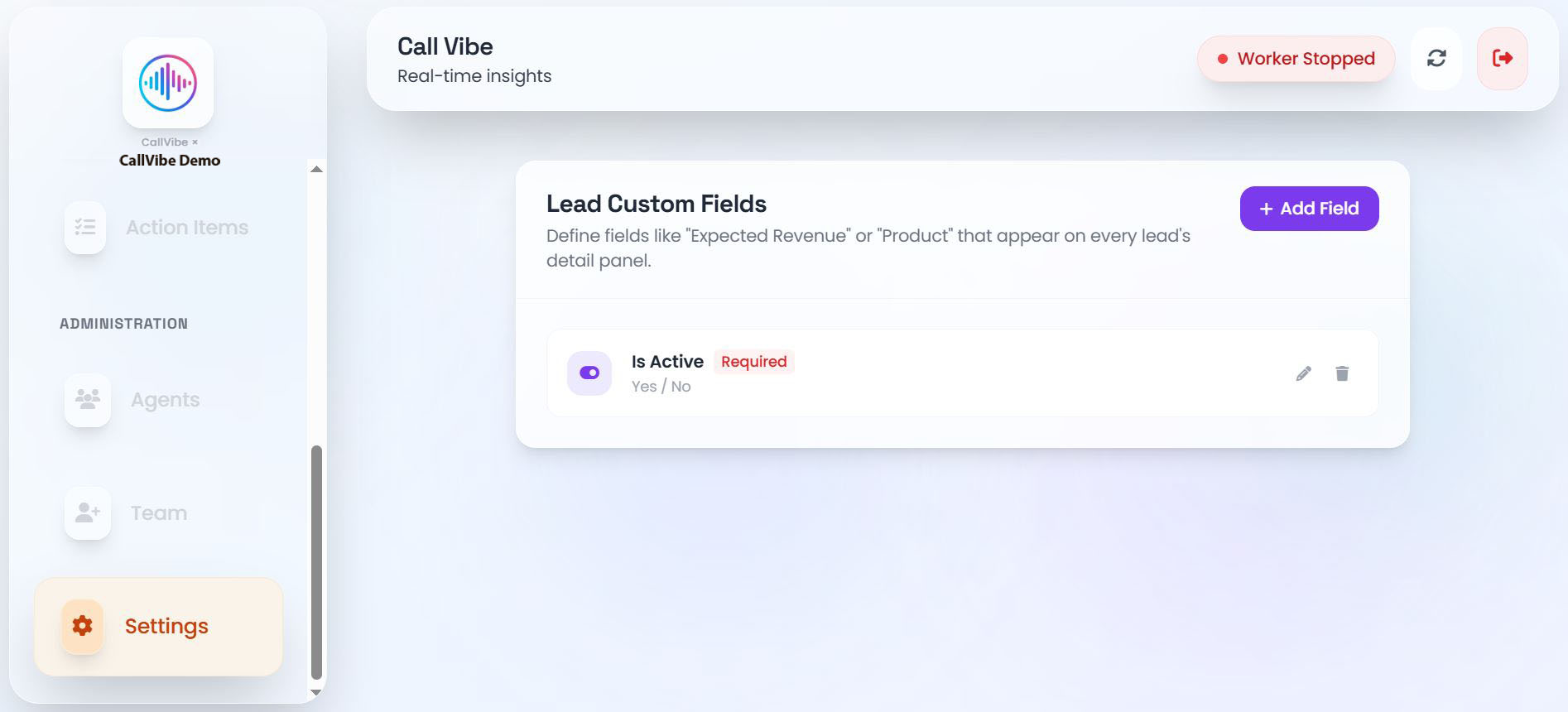
Lead Custom Fields attach structured, business-specific data to every lead. They appear in the Lead Detail drawer and are filled in by agents.
Field Types
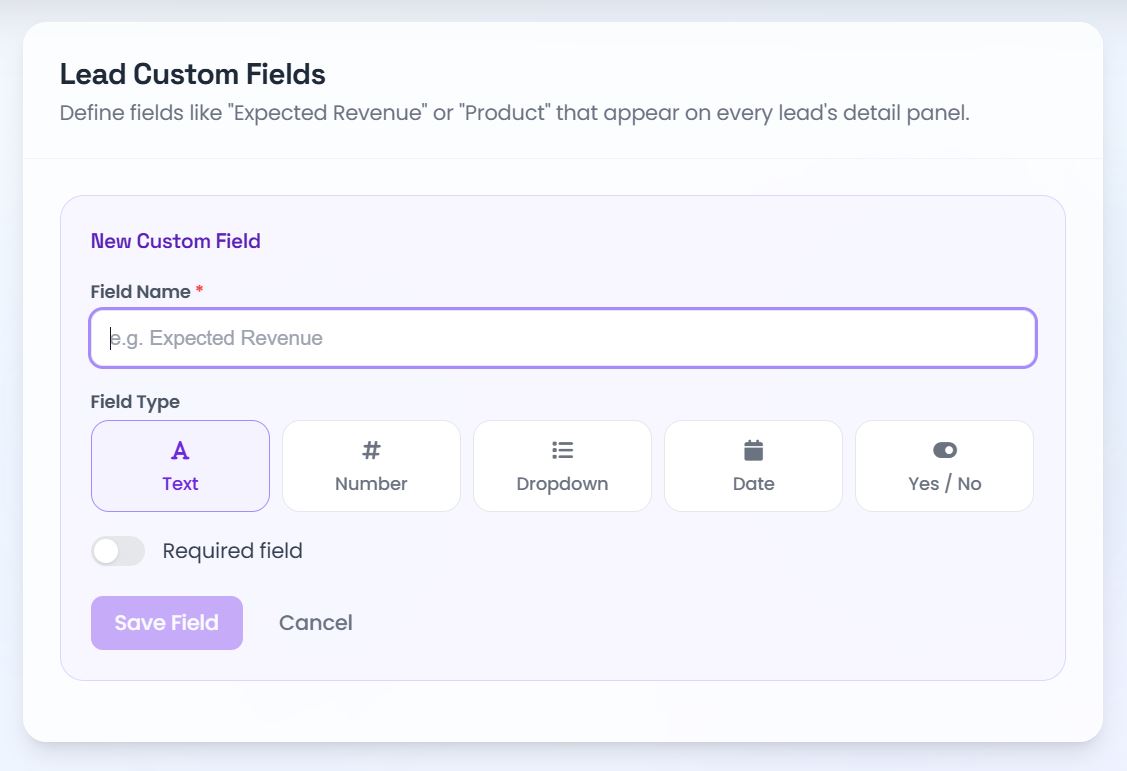
- Text: Free-form notes, names, URLs
- Number: Revenue figures, deal sizes, quantities
- Dropdown: Fixed choices (e.g., Starter / Pro / Enterprise)
- Date: Contract dates, follow-up deadlines
- Yes / No: Boolean flags (e.g., "Demo Completed?")
Manage Custom Fields
Add a Field
- Open Settings > Lead Custom Fields.
- Click Add Field.
- Enter a name and choose a type.
- For Dropdown, add your options.
- Toggle Required if the field must always be filled.
- Click Save Field.
Edit a Field
Click the pencil icon on any existing field to rename it, change its type, update dropdown options, or toggle the required flag.
Delete a Field
Click the trash icon and confirm. This removes the field definition and all stored values for that field across all leads.
Field Order
Fields display in the order they were created. To reorder, delete and re-create in the desired sequence.
Examples
- Expected Revenue (Number)
- Product Interest (Dropdown: Starter, Pro, Enterprise)
- Industry (Text)
- Demo Completed (Yes / No)
- Contract Date (Date)